With OAuth, you connect an AI assistant to Octopus Remote MCP by signing in with your Octopus account, so there’s no API key to create or store. The assistant acts as you, with the access level you choose, and can never do more than your account can.
| Access level | What the assistant can do |
|---|---|
| Read-only | Use your permissions, excluding any that make changes |
| Full access | Everything you can do, in every space you have access to |
Supported assistants include Claude Code, Claude, ChatGPT, Codex, GitHub Copilot, Google Antigravity, Zed, and Grok. Cursor doesn’t support Octopus OAuth, so use an Agent API key instead.
Connect your AI assistant
Before you begin
You’ll need:
- Octopus Cloud, or Octopus Server 2026.4.9289 or later.
- Enable Remote MCP turned on in Configuration > Settings > MCP Controls. It’s on by default.
- An Octopus user account. Service accounts and the guest account can’t sign in this way.
- For Claude, ChatGPT, and Grok, an Octopus instance that’s reachable from the internet.
In each example, replace your-octopus-url with your Octopus address.
Claude Code
To connect Claude Code:
-
Run the following commands:
Bashclaude mcp add --transport http octopus-deploy --scope user https://your-octopus-url/mcp claude mcp login octopus-deploy
Codex
The Codex CLI, IDE extension, and ChatGPT desktop app share the same configuration, so you only connect once.
To connect Codex:
-
Run the following commands:
Bashcodex mcp add octopus-deploy --url https://your-octopus-url/mcp codex mcp login octopus-deploy
Other assistants
Use these steps for Claude on the web, Claude Desktop, ChatGPT, GitHub Copilot, and other assistants that support remote MCP servers with OAuth.
To connect another AI assistant:
- Add a remote MCP server with the URL
https. See your assistant’s documentation for where to do this.: / /your-octopus-url /mcp - Choose OAuth if your assistant asks how to authenticate.
- Approve access in Octopus.
Approve access in Octopus
Your assistant opens Octopus in your browser.
To approve access in Octopus:
-
Sign in, if you aren’t already.
-
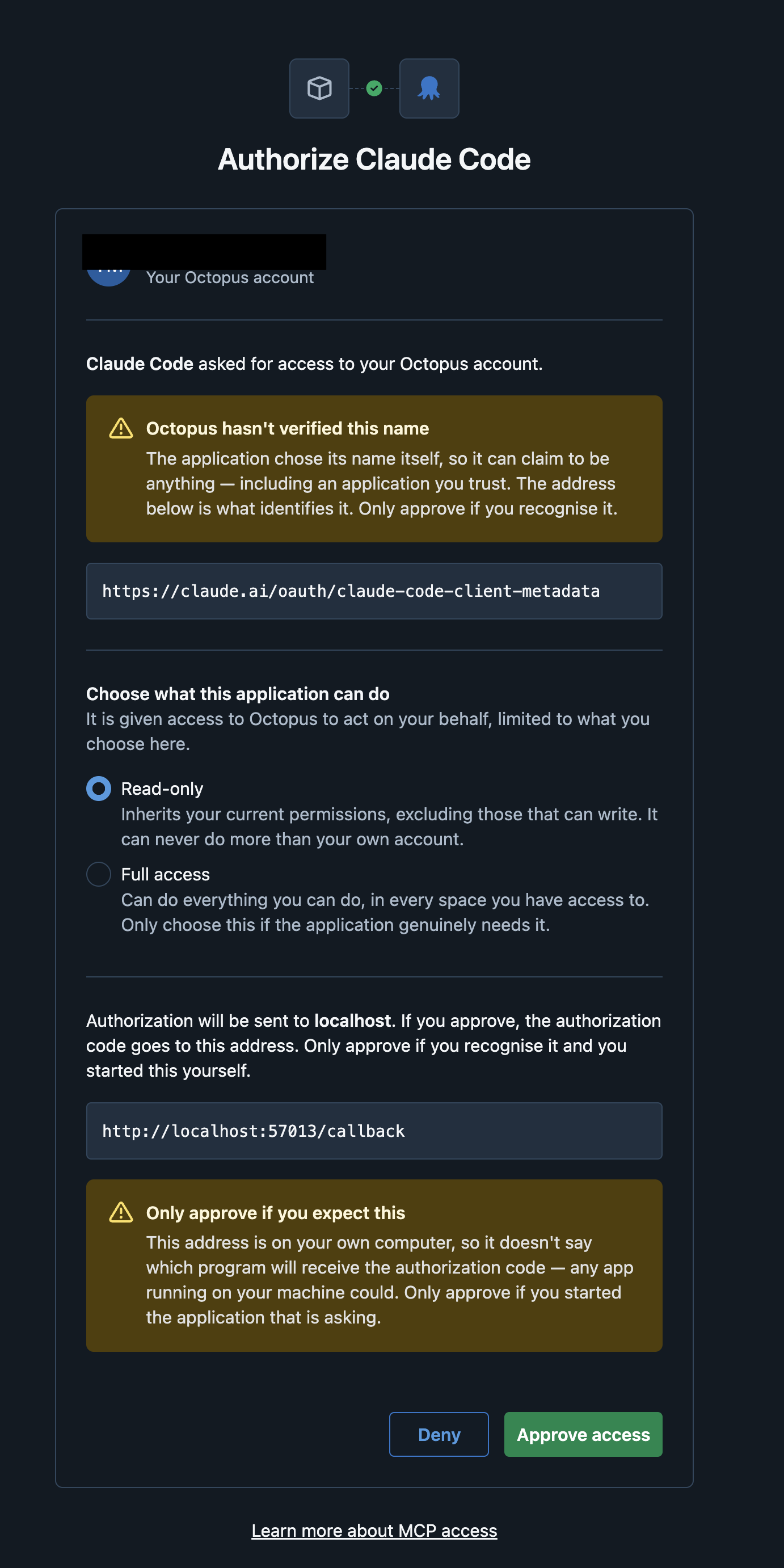
Check that the application and the address under Authorization will be sent to match your assistant.
-
Choose Read-only or Full access.
You can’t change the access level later. To change it, disconnect the assistant, then connect again.
-
Select Approve.
To check the connection, ask your assistant to list your Octopus spaces. The connection lasts up to 20 days. After that, your assistant asks you to sign in again.
Check the connection in Claude Code
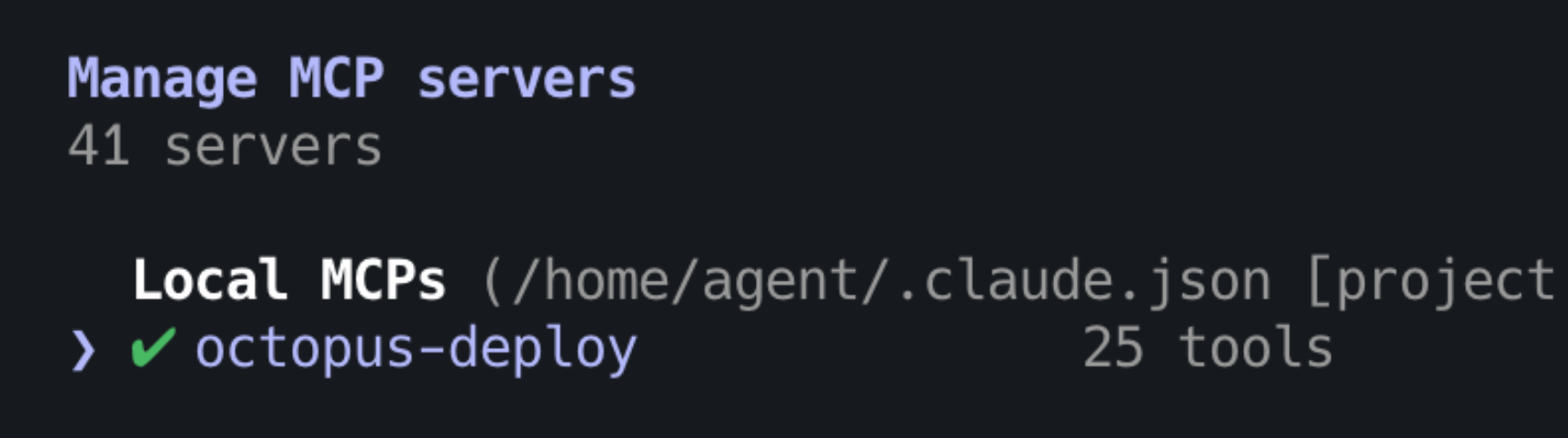
In Claude Code, run /mcp to see the connection status:
Disconnect an AI assistant
To disconnect Claude Code, run claude mcp logout octopus-deploy. This also ends its access in Octopus.
Most other assistants don’t end their access in Octopus when you remove the server or sign out. To end it, revoke your sessions.
Revoke Sessions disconnects all your AI assistants and signs you out of Octopus everywhere.
To disconnect another AI assistant:
- Remove the Octopus server from your assistant.
- In Octopus, select your profile image.
- Select Profile.
- Select the overflow menu (
.).. . - Select Revoke Sessions.
Administrators can revoke another user’s sessions from Configuration > Users.
Allow an AI assistant’s redirect address
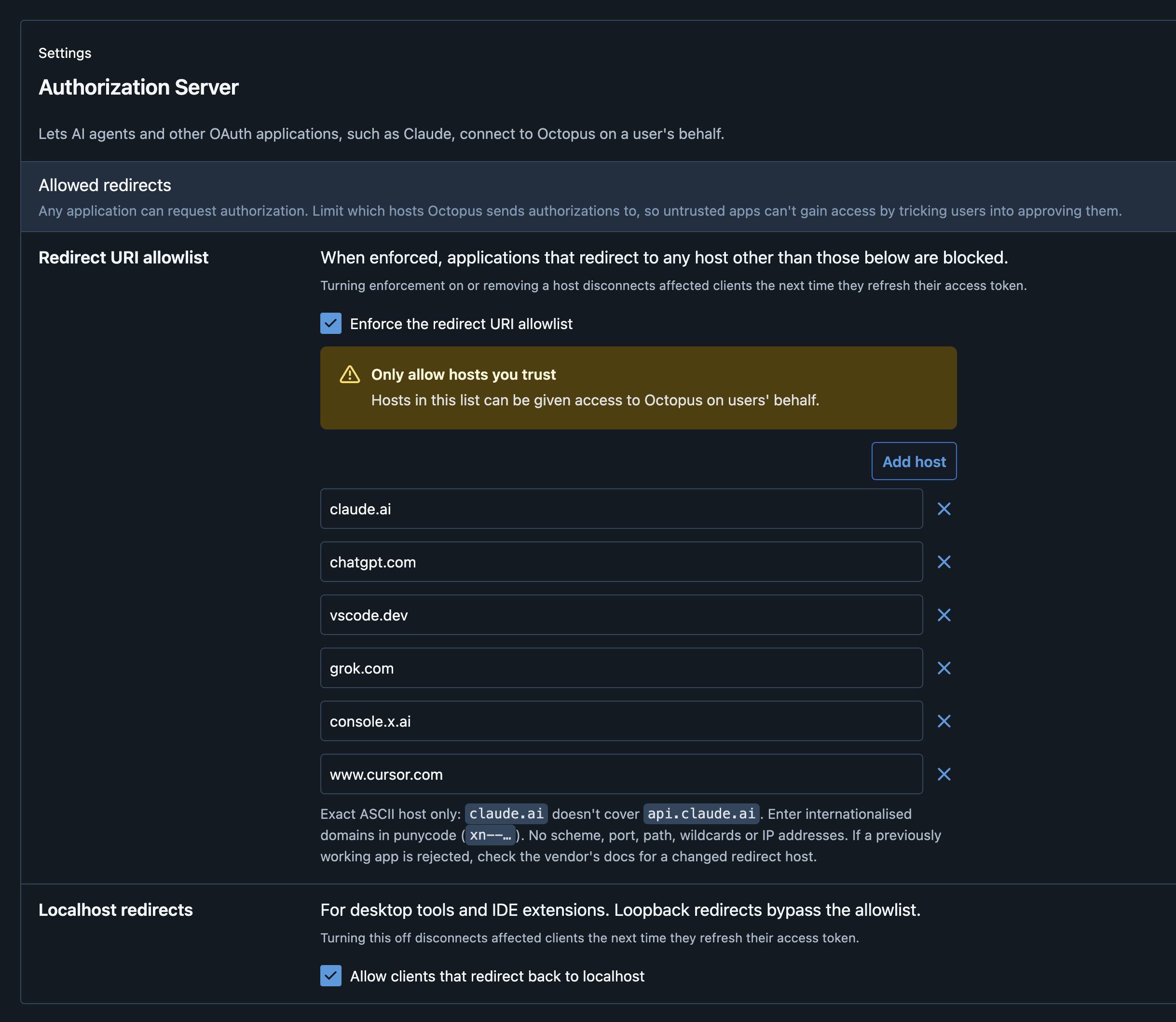
Octopus only returns you to an assistant on your computer (localhost) or on an allowed host. By default, the allowed hosts are claude, chatgpt, vscode, grok, and console.
Before you begin
You’ll need:
- The ConfigureServer permission.
To allow an AI assistant’s redirect address:
-
Go to Configuration > Settings > Authorization Server.
-
Under Redirect URI allowlist, select Add host.
-
Enter the host shown on the “This request was blocked” page, such as
example. It must match exactly..com -
Select Save.
Removing a host, or clearing Allow clients that redirect back to localhost, disconnects the affected assistants in up to 60 minutes.
MCP OAuth audit events
Octopus records sign-ins and refused requests in the audit log. To see them, filter Configuration > Audit by one of these event groups.
| Event group | Events |
|---|---|
| MCP OAuth events | MCP OAuth authorization code issued, MCP OAuth authorization code issuance failed, MCP OAuth access token issued, MCP OAuth access token issuance failed, MCP OAuth access token revoked, MCP OAuth token revocation refused, MCP OAuth authorization request refused, OAuth redirect URI not allowed |
| MCP OAuth critical-events | MCP OAuth authorization code issuance failed, MCP OAuth access token issuance failed, MCP OAuth token revocation refused, MCP OAuth authorization request refused |
Version notes
- OAuth sign-in for Octopus Remote MCP is available from Octopus Server 2026.4.9289.